index -1 does not have a value in datagridview

Error message: index -1 does not have a value in datagridview

scenario: The grid was bound to a simple object collection.  The object contained
string and decimal properties, nothing to fancy.  When an item was added to
the collection I would databind as follows (this happened on each item
"Add"):

If I added an item after I deleted all the items in
the grid (collection) and try to select it the grid would bomb out with the
following error: "Index -1 does not have a value".

myObject.CollectionProperty.Add(myBasicObject);

dgvGrid.DataSource = myObject.CollectionProperty;

This will cause the above error

solution:
set the simple object collection in to a binding source and set the resetbinding to false like below
Againg assign the binding source to the grid
bsBindingSource.ResetBindings(false);
bsBindingSource.DataSource = myObject.CollectionProperty;
dgvGrid.DataSource =  bsBindingSource;

to the Add routine, just after the object is added to the collection.
Viola!  Problem was fixed, and I no longer needed to bind the grid twice.  I
was able to make the binding work now with just this:

Chanakya's Quotes - Worth reading a million times...


image00136.jpg

***************************************************
 
"A person should not be too honest.

Straight trees are cut first

and Honest people are victimised first."

Chanakya quotes (Indian politician, strategist and writer, 350 BC 75 BC)
 
***************************************************
 
"Even if a snake is not poisonous,

it should pretend to be venomous."

Chanakya quotes (Indian politician, strategist and writer, 350 BC-275 BC)
 
***************************************************
 
"The biggest guru-mantra is: Never share your secrets with anybody. ! It will destroy you."

Chanakya quotes (Indian politician, strategist and writer, 350 BC-275 BC)
 
***************************************************
 
"There is some self-interest behind every friendship.
There is no Friendship without self-interests.
This is a bitter truth."

Chanakya quotes (Indian politician, strategist and writer, 350 BC-275 BC)
 
***************************************************
 

"Before you start some work, always ask yourself three questions - Why am I doing it, What the results might be and Will I be successful. Only when you think deeply
and find satisfactory answers to these questions, go ahead."

Chanakya quotes (Indian politician, strategist and writer, 350 BC-275 BC)
 
***************************************************
 
"As soon as the fear approaches near, attack and destroy it."

Chanakya quotes (Indian politician, strategist and writer, 350 BC-275 BC)
 
***************************************************
 
"Once you start a working on something,

don't be afraid of failure and
don't abandon it.

People who work sincerely are the happiest."

Chanakya quotes (Indian politician, strategist and writer, 350 BC-275BC)
 
***************************************************
 
"The fragrance of flowers spreads

only in the direction of the wind.
But the goodness of a person spreads in all direction."

Chanakya quotes (Indian politician, strategist and writer, 350 BC-275BC)
 
***************************************************
 
"A man is great by deeds, not by birth."

Chanakya quotes (Indian politician, strategist and writer, 350 BC-275BC)
 
***************************************************
 
"Treat your kid like a darling for the first five years.

For the next five years, scold them.
By the time they turn sixteen, treat them like a friend.

Your grown up children are your best friends."

Chanakya quotes (Indian politician, strategist and writer, 350 BC-275BC)
 
***************************************************
 
"Books are as useful to a stupid person

as a mirror is useful to a blind person."

Chanakya quotes (Indian politician, strategist and writer, 350 BC-275BC)
 
***************************************************
 
"Education is the best friend.

An educated person is respected everywhere.
Education beats the beauty and the youth."

Chanakya quotes (Indian politician, strategist and writer, 350 BC-275BC)

Keyboard Shortcuts for .Net Programming

File
1. New Project (Ctrl+Shift+N )
2. Open Project/Solution (Ctrl+Shift+O)
3. Open File (Ctrl+O)
4. Save (Ctrl+S)
5. Save As (Ctrl+Shift+S)
6. Print (Ctrl+P)

Edit
7. Undo (Ctrl+Z)
8. Redo (Ctrl+Y)

9. Cut (Ctrl+X)
10. Copy (Ctrl+C)
11. Paste (Ctrl+V)
12. Cycle Clipboard Ring (Ctrl+Shift+V)
13. Select All (Ctrl+A)
14. Quick Find (Ctrl+F)

15. Quick Replace (Ctrl+H)
16. Find in Files (Ctrl+Shift+F)
17. Replace in Files (Ctrl+Shift+H)
18. Find Symbol (Alt+F12)

19. Format Document (Ctrl+E,D)
20. Format Selection (Ctrl+E,F)
21. Make Uppercase (Ctrl+Shift+U)
22. Make Lowercase (Ctrl+U)
23. Delete Horizontal White Space (Ctrl+E, \)
24. View White Space (Ctrl+E,S)
25. Word Wrap (Ctrl+E,W)
26. Incremental Search (Ctrl+I)
27. Comment Selection (Ctrl+K,C)
28. Uncomment Selection (Ctrl+K,U)

29. Toggle Bookmark (Ctrl+K,K)
30. Enable Bookmark (Ctrl+B,E)
31. Previous Bookmark (Ctrl+K,P)
32. Next Bookmark (Ctrl+K, N)
33. Clear Bookmarks (Ctrl+K,K)
34. Add Task List Shortcut (Ctrl+E,T)

35. Hide Selection (Ctrl+M, Ctrl+H)
36. Toggle Outlining Expansion (Ctrl+M,M)
37. Toggle All Outlining (Ctrl+M,L)
38. Stop Outlining (Ctrl+M,P)
39. Stop Hiding Current (Ctrl+M, Ctrl+U)

40. Generate Method Stub (Ctrl+K,M)
41. List Members (Ctrl+K,L)
42. Parameter Info (Ctrl+K,P)
43. Complete Word (Ctrl+K,W)
44. Insert Snippet (Ctrl+K,X)
45. Surround With (Ctrl+K,S)

View
46. Code (F7)
47. Designer (Shift+F7)
48. Server Explorer (Ctrl+W,L)
49. Class View (Ctrl+W,C)
50. Code Definition Window (Ctrl+W,D)
51. Object Browser (Ctrl+W,J)
52. Error List (Ctrl+W,E)
53. Output (Ctrl+W,O)
54. Properties Window (Ctrl+W,P)
55. Task List (Ctrl+W,T)
56. Toolbox (Ctrl+W,X)

57. Find Symbol Results (Ctrl+W,Q)
58. Bookmark Window (Ctrl+W,B)
59. Command Window (Ctrl+W,A)
60. Document Outline (Ctrl+W,U)
61. Resource View (Ctrl+W,R)
62. Macro Explorer (Alt+F8)
63. Web Browser (Ctrl+W,W)

64. Full Screen (Shift+Alt+Enter)
65. Pending Checkins (Ctrl+W,G)
66. Navigate Backward (Ctrl+-)
67. Navigate Forward (Ctrl+Shift+-)
68. Property Pages (Shift+F4)

Refactor
69. Rename (F2)
70. Extract Method (Ctrl+R,M)
71. Encapsulate Field (Ctrl+R,E)
72. Promote Local Variable to Parameter (Ctrl+R,P)
73. Remove Parameters (Ctrl+R,V)
74. Reorder parameters (Ctrl+R,O)

Website
75. Add New Item (Ctrl+Shift+A)
76. Add Existing Item (Shift+Alt+A)

Build
77. Build Solution (F6)
78. Build Web Site (Shift+F6)

Debug
79. Breakpoints (Ctrl+D,B)
80. Immediate (Ctrl+D,I)

81. Start Debugging (F5)
82. Start without Debugging (Ctrl+F5)
83. Exceptions (Ctrl+D,E)
84. Step Into (F11)
85. Step Over (F10)
86. Break at Function (Ctrl+D,N)
87. Delete All Breakpoints (Ctrl+Shift+F9)

Tools
88. Attach to Process (Ctrl+Alt+P)
89. Code Snippets Manager (Ctrl+K, Ctrl+B)

90. Run TemporaryMacro (Ctrl+Shift+P)
91. Record TemporaryMacro (Ctrl+Shift+R)

92. Macro Explorer (Alt+F8)
93. Macros IDE (Alt+F11)

Help
94. How Do I (Ctrl+F1,H)
95. Search (Ctrl+F1,S)
96. Contents (Ctrl+F1,C)
97. Index (Ctrl+F1,I)
98. Help Favourites (Ctrl+F1,F)
99. Dynamic Help (Ctrl+F1,D)
100. Index Results (Ctrl+F1,T)

.net 2008 features

1. LINQ Support

LINQ essentially is the composition of many standard query operators that allow you to work with data in a more intuitive way regardless.

LINQ

The benefits of using LINQ are significant – Compile time checking C# language queries, and the ability to debug step by step through queries.

2. Expression Blend Support

Expression blend is XAML generator tool for silverlight applications. You can install Expression blend as an embedded plug-in to Visual Studio 2008. By this you can get extensive web designer and JavaScript tool.

3. Windows Presentation Foundation

WPF provides you an extensive graphic functionality you never seen these before. Visual Studio 2008 contains plenty of WPF Windows Presentation Foundation Library templates. By this a visual developer who is new to .NET, C# and VB.NET can easily develop the 2D and 3D graphic applications.

Visual Studio 2008 provides free game development library kits for games developers. currently this game development kits are available for C++ and also 2D/3D Dark Matter one image and sounds sets.

4. VS 2008 Multi-Targeting Support

Earlier you were not able to working with .NET 1.1 applications directly in visual studio 2005. Now in Visual studio 2008 you are able to create, run, debug the .NET 2.0, .NET 3.0 and .NET 3.5 applications. You can also deploy .NET 2.0 applications in the machines which contains only .NET 2.0 not .NET 3.x.

5. AJAX support for ASP.NET
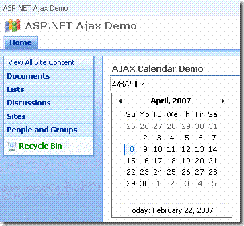
AJAX

Previously developer has to install AJAX control library separately that does not come from VS, but now if you install Visual Studio 2008, you can built-in AJAX control library. This Ajax Library contains plenty of rich AJAX controls like Menu, TreeView, webparts and also these components support JSON and VS 2008 contains in built ASP.NET AJAX Control Extenders.

6. JavaScript Debugging Support

Since starting of web development all the developers got frustration with solving javascript errors. Debugging the error in javascript is very difficult. Now Visual Studio 2008 makes it is simpler with javascript debugging. You can set break points and run the javaScript step by step and you can watch the local variables when you were debugging the javascript and solution explorer provides javascript document navigation support.

7. Nested Master Page Support

Already Visual Studio 2005 supports nested master pages concept with .NET 2.0, but the problem with this Visual Studio 2005 that pages based on nested masters can't be edited using WYSIWYG web designer. But now in VS 2008 you can even edit the nested master pages.

8. LINQ Intellisense and Javascript Intellisense support for silverlight applications
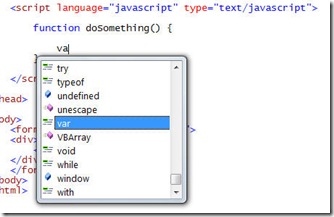
javascriptintellisense

Most happy part for .NET developers is Visual Studio 2008 contains intellisense support for javascript. Javascript Intellisense makes developers life easy when writing client side validation, AJAX applications and also when writing Silverlight applications

Intellisense Support: When we are writing the LINQ Query VS provides LINQ query syntax as tool tips.

9. Organize Imports or Usings: We have Organize Imports feature already in Eclipse. SInce many days I have been waiting for this feature even in VS. Now VS contains Organize Imports feature which removes unnecessary namespaces which you have imported. You can select all the namespaces and right click on it, then you can get context menu with Organize imports options like "Remove Unused Usings", "Sort Usings", "Remove and Sort". Refactoring support for new .NET 3.x features like Anonymous types, Extension Methods, Lambda Expressions.

10. Intellisense Filtering: Earlier in VS 2005 when we were typing with intellisense box all the items were being displayed. For example If we type the letter 'K' then intellisense takes you to the items starts with 'K' but also all other items will be presented in intellisense box. Now in VS 2008 if you press 'K' only the items starts with 'K' will be filtered and displayed.

11. Intellisense Box display position
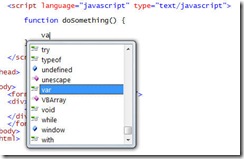
javascriptintellisense

Earlier in some cases when you were typing the an object name and pressing . (period) then intellisense was being displayed in the position of the object which you have typed. Here the code which we type will go back to the dropdown, in this case sometimes programmer may disturb to what he was typing. Now in VS 2008 If you hold the Ctrl key while the intellisense is dropping down then intellisense box will become semi-transparent mode.

12. Visual Studio 2008 Split View
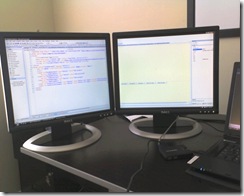
spit

VS 205 has a feature show both design and source code in single window. but both the windows tiles horizontally. In VS 2008 we can configure this split view feature to vertically, this allows developers to use maximum screen on laptops and wide-screen monitors.

Here one of the good feature is if you select any HTML or ASP markup text in source window automatically corresponding item will be selected in design window.

13. HTML JavaScript warnings, not as errors: VS 2005 mixes HTML errors and C# and VB.NET errors and shows in one window. Now VS 2008 separates this and shows javascript and HTML errors as warnings. But this is configurable feature.

14. Debugging .NET Framework Library Source Code:

Now in VS 2008 you can debug the source code of .NET Framework Library methods. Lets say If you want to debug the DataBind() method of DataGrid control you can place a debugging point over there and continue with debug the source code of DataBind() method.

15. In built Silverlight Library
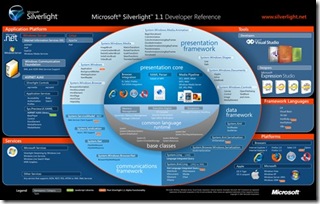
silverlight

Earlier we used to install silverlight SDK separately, Now in VS 2008 it is inbuilt, with this you can create, debug and deploy the silverlight applications.

16. Visual Studio LINQ Designer

LINQ

Already you know in VS 2005 we have inbuilt SQL Server IDE feature. by this you no need to use any other tools like SQL Server Query Analyzer and SQL Server Enterprise Manger. You have directly database explorer by this you can create connections to your database and you can view the tables and stored procedures in VS IDE itself. But now in VS 2008 it has View Designer window capability with LINQ-to-SQL.

17. Inbuilt C++ SDK

Earlier It was so difficult to download and configure the C++ SDK Libraries and tools for developing windows based applications. Now it is inbuilt with VS 2008 and configurable

18. Multilingual User Interface Architecture - MUI

MUI

MUI is an architecture contains packages from Microsoft Windows and Microsoft Office libraries. This supports the user to change the text language display as he wish.

Visual Studio is now in English, Spanish, French, German, Italian, Chinese Simplified, Chinese Traditional, Japanese, and Korean. Over the next couple of months. Microsoft is reengineering the MUI which supports nine local languages then you can even view Visual studio in other 9 local languages.

19. Microsoft Popfly Support

popfly

Microsoft Popfly explorer is an add-on to VS 2008, by this directly you can deploy or hosting the Silverlight applications and Marshup objects

20. Free Tools and Resources

People may feel that I am a promoter to Visual Studio 2008 as a salesman, but we get plenty of free resources and free tools with Visual Studio 2008.

  • Visual Studio 2008 Trial
  • 101 LINQ Samples
  • Free .NET 3.5 control libraries with free sample programs,
  • You can get plenty of free video training tutorials from Microsoft BDLC - Beginner Developer Learning Center,
  • C++ games development library,
  • Microsoft has provided lot of e-Books,
  • P2P library and
  • Microsoft is providing Coding4Fun sample program kit.
  • Visual Studio Registration Discounts: If you register the Visual Studio you get Free Control Libraries, Books, Images, and Discounts.

  • Listen to nirmaln - sakara - playlist audio songs at MusicMazaa.com